

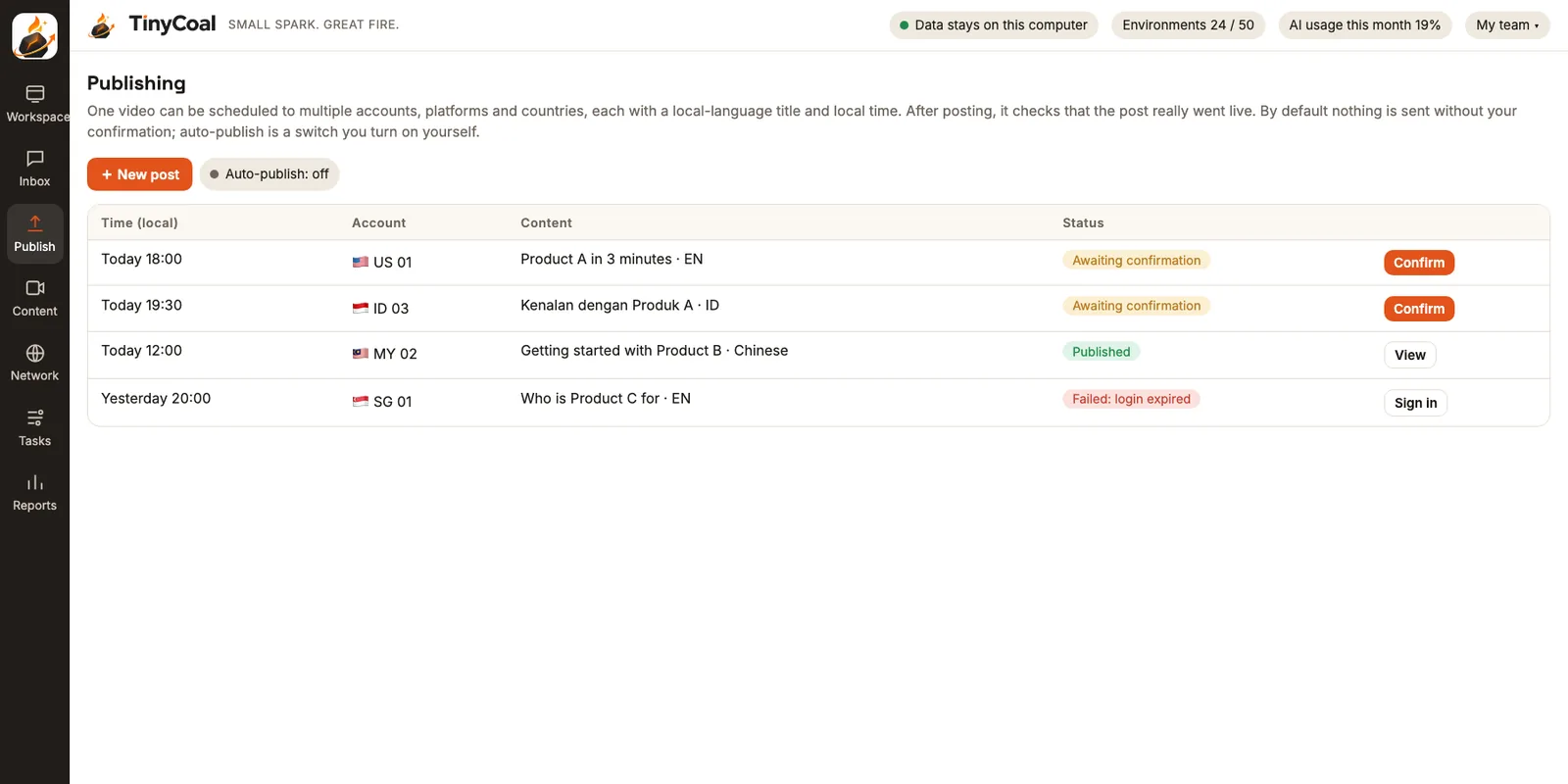
In short: in Publishing, pick an approved video and the accounts to post it on. Each account automatically gets a title and hashtags in its own language, scheduled at its local time. By default every post waits for you to press confirm. After posting, the app goes back to the account page to check that it really went live, and if it didn't, it tells you why.
How a post gets scheduled
- Pick the content. Choose from videos approved in the Content studio, or import a video you edited yourself.
- Pick the accounts. You can select by group, such as "Southeast Asia TikTok". Each account posts from its own separate environment.
- Each account is set up automatically. Titles and hashtags switch to that account's language, times follow its local time, and you're reminded to turn on the AI content label when needed.
- Conflict check. The app warns you if one account has too many posts in a day, or if two accounts would post the same video at the same moment.
- Confirm on time. You get a reminder before the scheduled time, and nothing posts until you press "Confirm".
- Check afterward. After posting, the app goes back to the account page to see if the post is really there. The result goes into the publishing log and the next day's report.
Local language and local time
The same video going to accounts in five countries shouldn't carry one title at one time in your own time zone. Publishing handles this from each account's settings:
| Account | Local time | Title language | In UTC |
|---|---|---|---|
| United States · Dallas | 19:00 | English | 01:00 next day (winter time) |
| Indonesia · Jakarta | 19:30 | Bahasa Indonesia | 12:30 same day |
| Malaysia · Kuala Lumpur | 12:00 | Chinese | 04:00 same day |
| Thailand · Bangkok | 20:00 | Thai | 13:00 same day |
These are example times. The best time for each account depends on its own data. The app handles daylight saving changes automatically using local rules. For how to set this up, see Matching language and time zone across countries.
Confirmation gate and auto-publish
By default, every post needs you to press confirm. Auto-publish is a switch you turn on yourself in Settings, and the app explains the risks before you do. Even with it on, these limits apply:
- Each account has a daily posting limit, which you can set per account
- Actions are spaced out at a human pace, never the same post to dozens of accounts in the same second
- A captcha, two-step verification or unusual page stops everything and hands over to you
- If the network exit drops, that account's publishing pauses instead of switching to your real network
Platforms also set their own daily limits per account, such as the cap stated in TikTok's official API documentation. We summarized these in Official Business Center vs third-party tools.
When a post fails, you'll know why
| Reason | What the app does | What you do |
|---|---|---|
| Login expired | Pauses further posts for this account | Sign in again inside the environment |
| Proxy disconnected | Pauses, never switches to a direct connection | Replace the network exit |
| Rejected by the platform | Records the platform's message | Edit the content as the message says |
| Page changed | Stops auto-publishing on this platform until the adapter is updated | Post manually in the meantime |
| Result unclear | Checks first, doesn't repost | Wait for the check result |
"Check first, don't repost when unclear" matters: a duplicate post causes more trouble than a missed one.
Official APIs and posting inside the environment
By default, posting happens inside the account's environment, the same flow as opening the web page and uploading yourself. Eligible business accounts can choose the platform's official API instead. The differences and requirements are explained in this comparison.
Who posted what and when is recorded in the activity log on your computer, and you can export it for a client or your manager. Teams managing accounts for clients can read how agencies use it. To connect messages with publishing results, see the Inbox.
Worth reading before you schedule
Posting the right things beats posting more. When several accounts cover the same topic, read Why AI videos look the same first so they don't post near-identical videos, and AI-generated visuals should be labeled when you post. For who schedules and who confirms, see How a team manages multiple TikTok accounts; for checking results the next day, see the daily checklist. Handle comments and messages that come in afterward with the multilingual reply method. Teams selling products can read how cross-border sellers use it, software teams can read how brand teams use it, and all team types are under Who it's for. Responsibility for auto-publishing is set out in the terms of service. Other features are in the features overview. To try it first, join early access, and find more methods in the guides.
FAQ
Can I just schedule, then post manually when it's time?
Yes. When the time comes, the app reminds you and opens the account's posting page, and you press publish yourself.
Can one video go to TikTok and other platforms at the same time?
Yes. You can schedule it for accounts on different platforms, with titles, hashtags and sizes handled per platform. The order in which platforms are supported is in the FAQ.
Will scheduled posts go out if my computer is off?
No. TinyCoal is a desktop app and publishes from your computer, so at the scheduled time the computer must be on and the app running. Not keeping your data on our servers is both the cost and the benefit; see Local data and privacy.